
When you're developing a website, it's always best to make your local development environment match the live server as closely as possible. That includes using the same versions of PHP, the web server and, importantly, the same database server.
As my host (ScalaHosting) uses MariaDB 11.8 it makes sense for me to use the same database server in my local dev envionment.
If you're using Laragon for local development, I've written before about why I think it's such a good development environment and how to make Laragon pretend to be a real domain. I also eventually added a missing feature to Laragon because apparently I wasn't content with leaving well enough alone.
In this tutorial I give you step-by-step instructions on using MariaDB with Laragon.
If your live site uses MariaDB but your local development environment uses MySQL, you can occasionally encounter differences in SQL syntax, database behaviour or supported features that won't show up until the code reaches the live server. Testing against the same database engine locally means you are testing in an environment much closer to the one your site will actually run on.
Laragon makes it particularly easy to switch between different versions of PHP but by default there is no means to swap MySQL with MariaDB. This tutorial shows how to add MariaDB 11.8 to an existing Laragon installation and move your existing databases from MySQL to MariaDB.
MariaDB is a drop-in replacement for many MySQL workloads, but it is a separate database server with its own data directory. That means you can have both MySQL and MariaDB available in Laragon and switch between them when you need to test your sites. But as they both run on the same port you can only have one of them running at a time.
Remember
MySQL and MariaDB will have separate databases. Changes you make while running MariaDB will not magically appear when you switch back to MySQL.
Step 1: Back up your databases
Before changing anything, export your existing MySQL databases.
In Laragon, click the Database button. This will launch HeidiSQL. Connect to your MySQL server as usual.
You need to export each database that you want to use with MariaDB.
In HeidiSQL, right-click the database and select Export database as SQL.
Use the export settings shown below:
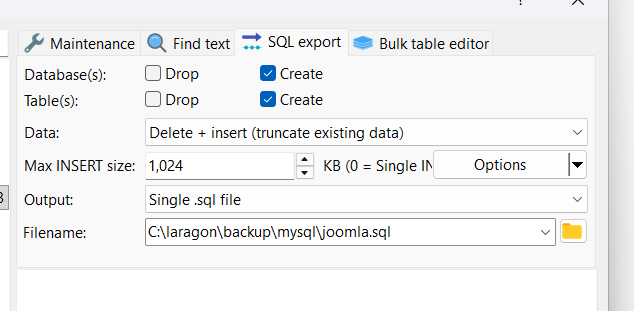
- For both Database(s) and Table(s) select: Create
- For the Data option, select: Delete + insert (truncate existing data)
- For Output, select: Single .sql file
- Choose a suitable filename and location for the SQL dump.
Repeat this for each database you want to move to MariaDB.
The resulting .sql files will be used to recreate the databases in MariaDB.
HeidiSQL exports SQL files as UTF-8. You don't need to find an encoding option in the export dialog. The important encoding setting is when you subsequently import the SQL file.
Step 2: Add MariaDB to Laragon's Quick Add tools
Laragon's Quick Add feature doesn't currently include MariaDB by default, but it can be extended by editing its package configuration. Laragon stores this configuration in:
{LARAGON_ROOT}\usr\packages.conf
and provides a Tools → Quick add → Configuration menu item for editing it.
In Laragon, go to:
Tools → Quick add → Configuration
This will open the configuration file in your configured text editor.
Find the section containing the MySQL packages.
Add the following MariaDB entry immediately after the MySQL section:
# MariaDB
# MariaDB 11.8 is a long-term release, maintained until June 2028.
mariadb-11.8.8=https://dlm.mariadb.com/4707361/MariaDB/mariadb-11.8.8/winx64-packages/mariadb-11.8.8-winx64.zip
---
Save the file and close the editor.
Step 3: Stop MySQL
In the Laragon control panel, click the toggle next to MySQL to stop the MySQL server.
This is important because both servers normally want to use the same database port, so they cannot both be running at the same time.
Step 4: Install MariaDB
Now go back to:
Tools → Quick Add
Scroll down.
You should now see MariaDB in the list of available packages.
Click MariaDB.
Laragon will download the MariaDB package and install it into your Laragon installation.
You don't need to run the MariaDB Windows installer. Laragon manages the installation as one of its own packages.
Step 5: Start MariaDB
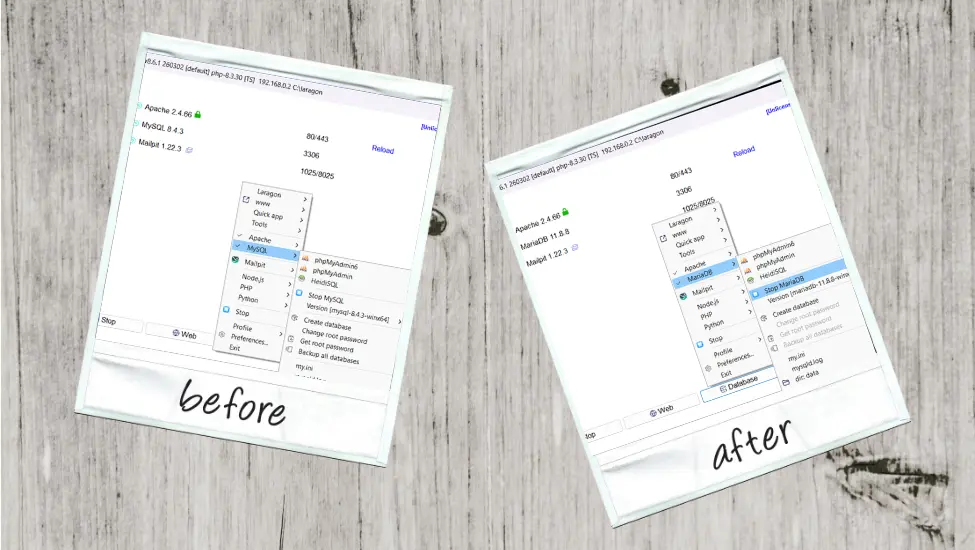
Laragon will still show MySQL, so right-click the Laragon control panel and look for:
MySQL → Version
You should now have MariaDB available as one of the versions that can be selected.
Select MariaDB.
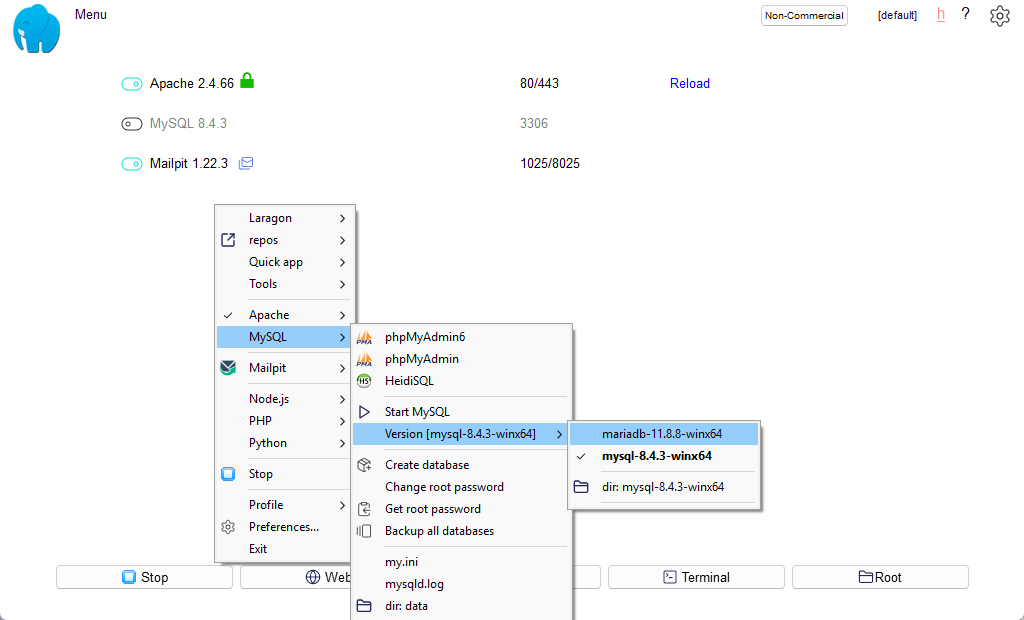
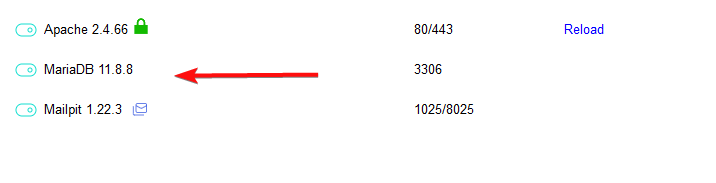
The database entry in the Laragon control panel should now show MariaDB. Toggle it on to start the server.
At this point, Laragon is running MariaDB rather than MySQL.
Step 6: Restore your databases
Now it's time to restore the databases you exported in Step 1.
Click the Database button in Laragon to launch HeidiSQL.
Connect to the MariaDB server.
For each database you want to restore you just need to import the appropriate backup sql.
File → Run SQL file
A dialog will appear allowing you to select the .sql file you created earlier.
There is an important setting in this dialog.

Look for Encoding.
By default, HeidiSQL may show:
Auto detect (may fail)
Change this to: UTF-8,
click Open, and HeidiSQL will import the database into MariaDB. Repeat this for each database.
Important
HeidiSQL's documentation specifically warns that automatic encoding detection can produce broken characters when importing SQL files. HeidiSQL-generated SQL exports are UTF-8, so explicitly selecting UTF-8 avoids the problem.
For example, without the correct encoding you can end up with:
Typography »
instead of:
Typography »
Step 7: Check your sites
Your sites should now work exactly as they did before, but they are now running against MariaDB rather than MySQL.
Open your local sites and check them as you normally would.
One important thing to remember
MySQL and MariaDB are now two separate database servers with separate data.
For example:
MySQL
└── Joomla_database
    └── your_current_site_data

MariaDB
└── Joomla_database
    └── copy_made_during_the_migration
If you edit content while running MariaDB, those changes are made to the MariaDB database.
If you subsequently stop MariaDB and switch back to MySQL, you will see the old MySQL database and not the changes you made while using MariaDB.
Likewise, changes made while running MySQL will not appear in the MariaDB copy.


 Congratulations, you discovered a hidden secret!